Business Travel VPN Guide: Logging Into Company Accounts Safely Abroad
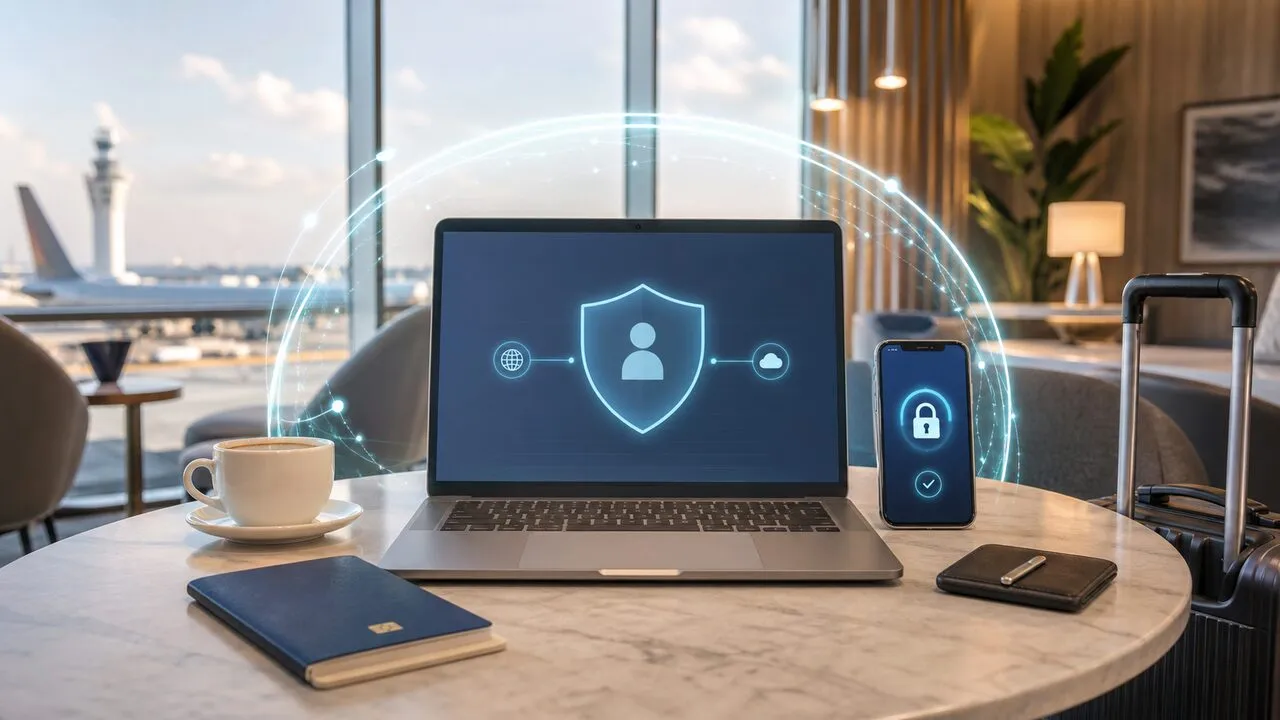
Business travel makes company accounts riskier because your normal work routine moves onto networks you do not control: airport lounges, hotel Wi-Fi, client offices, conference venues, and cafés between meetings. A VPN helps by encrypting the connection between your device and the VPN server, so the local network cannot easily inspect or tamper with your traffic. It is not a substitute for MFA, device management, or company policy, but it is one of the simplest ways to reduce network risk while you work abroad.
The real risk is not travel itself
Logging into Slack, email, a CRM, or a cloud drive from another country is not automatically unsafe. Modern work tools usually use HTTPS, device checks, and suspicious-login detection. The risk comes from everything around that login: unfamiliar networks, rushed decisions, fallback devices, and security prompts that arrive while you are boarding a flight.
That is why a business-travel setup should answer three questions before the trip starts. Which networks will you use when mobile data is weak? How will your company verify that the login is really you? What will you do if your laptop, phone, or security key is lost on the road? A VPN mainly answers the first question. The other two still need MFA, backups, and a clear recovery plan.
Where work accounts get exposed on the road
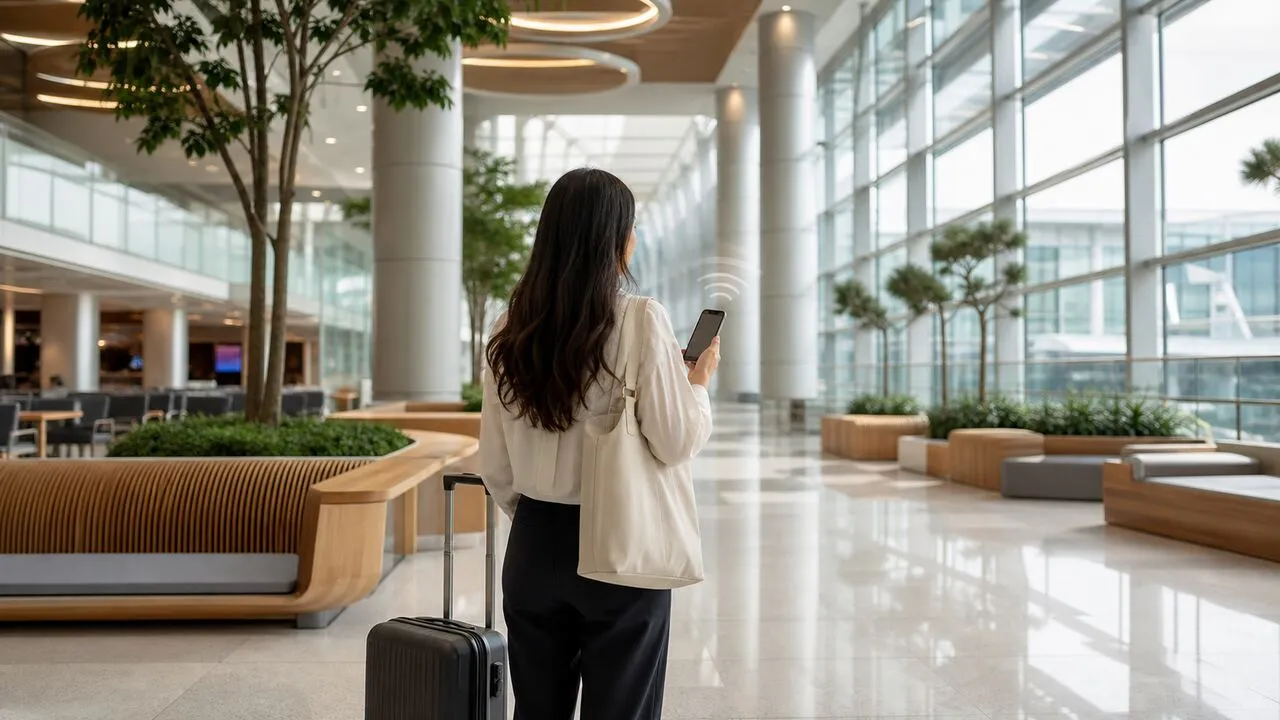
Airport and hotel networks are convenient, but they are shared by strangers and often run with minimal isolation between guests. A malicious hotspot with a familiar name can trick a traveler into joining the wrong network, and a compromised router can redirect traffic toward fake login pages. For a broader travel-network checklist, start with our hotel and airport Wi-Fi safety guide.
Client offices and conference venues bring a different problem: you may trust the company you are visiting, but you still do not know who manages the guest network or what traffic monitoring is in place. Cafés are the loosest environment of all, because people often open work tools while tired, distracted, and close enough for shoulder surfing.
None of this means you should panic about every login. It means the network should not be treated as private just because it has a password printed at reception.
What a VPN does for business travelers
A VPN creates an encrypted tunnel from your device to the VPN server. On public or guest Wi-Fi, that tunnel prevents the local network from reading your DNS requests, injecting pages into unprotected traffic, or seeing the details of the services you use. This is especially useful when your workday includes a mix of browser tabs, messaging apps, file sync, admin dashboards, and video-call links.
It can also make access more predictable. Some company tools flag unfamiliar countries or unstable IP addresses as risky. Connecting through a nearby trusted region can reduce those surprises, though you should never use a VPN to bypass your employer’s stated security policy. If your company requires a corporate VPN or zero-trust client, use that first; a personal VPN is for protecting the open network around your device, not replacing the company stack.
For people moving around Asia, Lubi VPN is designed around Asia-Pacific connectivity. One subscription works across iPhone, Android, macOS, and Windows, so the same account can cover the phone you use for MFA and the laptop you use for work. It does not retain browsing content, full URLs, or traffic payloads; limited connection metadata may be retained for up to 90 days as described in the Privacy Policy. Plans do not auto-renew and include a 30-day refund guarantee if the service does not fit your travel routine.
What a VPN cannot fix
A VPN does not prove that you are the right person to access a company account. It cannot stop a phishing page if you type your password into it, cannot approve a lost MFA device, and cannot make an unmanaged laptop compliant with your company’s endpoint rules. If your organization blocks personal VPNs or requires a specific corporate tunnel, follow that rule.
The simplest way to think about it is this: a VPN protects the connection, while MFA protects the account and device controls protect the machine. Business travelers need all three. Our guide to common VPN mistakes covers this boundary in more detail.
Before you fly: prepare the work stack
Do the boring setup at home, not at a hotel desk ten minutes before a call:
- Update your laptop, phone, browser, password manager, and work apps before departure.
- Confirm that MFA works without your home phone number if roaming fails. Authenticator apps, passkeys, backup codes, or a spare security key are easier to manage before the trip.
- Save IT support contact details somewhere you can reach if your main device is locked.
- Check whether your employer allows personal VPNs, requires a corporate VPN, or blocks unknown networks.
- Download offline copies of documents you may need during flight delays, but keep sensitive files inside approved company storage.
- Test your VPN and video-call setup on both Wi-Fi and mobile data.
This overlaps with the broader VPN travel checklist, but work travel deserves a stricter standard because a small access problem can become a missed meeting or a data incident.
During the trip: choose networks deliberately
Use mobile data for short, sensitive tasks when coverage is good: approving MFA, checking payroll, signing a contract, or opening an admin panel. When you need hotel or venue Wi-Fi for long calls and file sync, connect to the VPN before opening work tools, and disconnect from networks you are no longer using.
Avoid saving public networks automatically. A phone or laptop that reconnects to a familiar-looking hotspot can join the wrong network without asking. If a captive portal asks for unusual information, or the Wi-Fi name is almost but not quite the venue’s official name, step back and verify it with staff.
On shared screens, keep notifications quiet and avoid opening password managers, payroll systems, or customer records while someone else can see the display. Network security matters, but business travel also creates ordinary physical risks.
If a login alert appears abroad
Do not approve a login request just because you are traveling and expect more alerts. If the prompt arrives at a time you did not initiate, deny it and report it through your company’s normal channel. If you are locked out, use the support path you prepared before departure rather than searching for a helpdesk number on a public network.
For business travelers, the goal is not to make every network feel like the office. It is to make the trip predictable: verified devices, working MFA, careful network choices, and an encrypted connection whenever you have to rely on Wi-Fi you do not control.